Learn how to disconnect a lock provider from your Guesty account. Removing a provider stops all communication between Guesty and your smart locks, which cancels any future guest codes.
Unlink locks from listing
Step by step:
- Sign in to your Guesty For Hosts account.
- Access Guesty Locks Manager
- On desktop: At the top right click the diamond icon then Guesty Locks Manager.
- On mobile: Click Menu then scroll down to click Guesty Locks Manager.
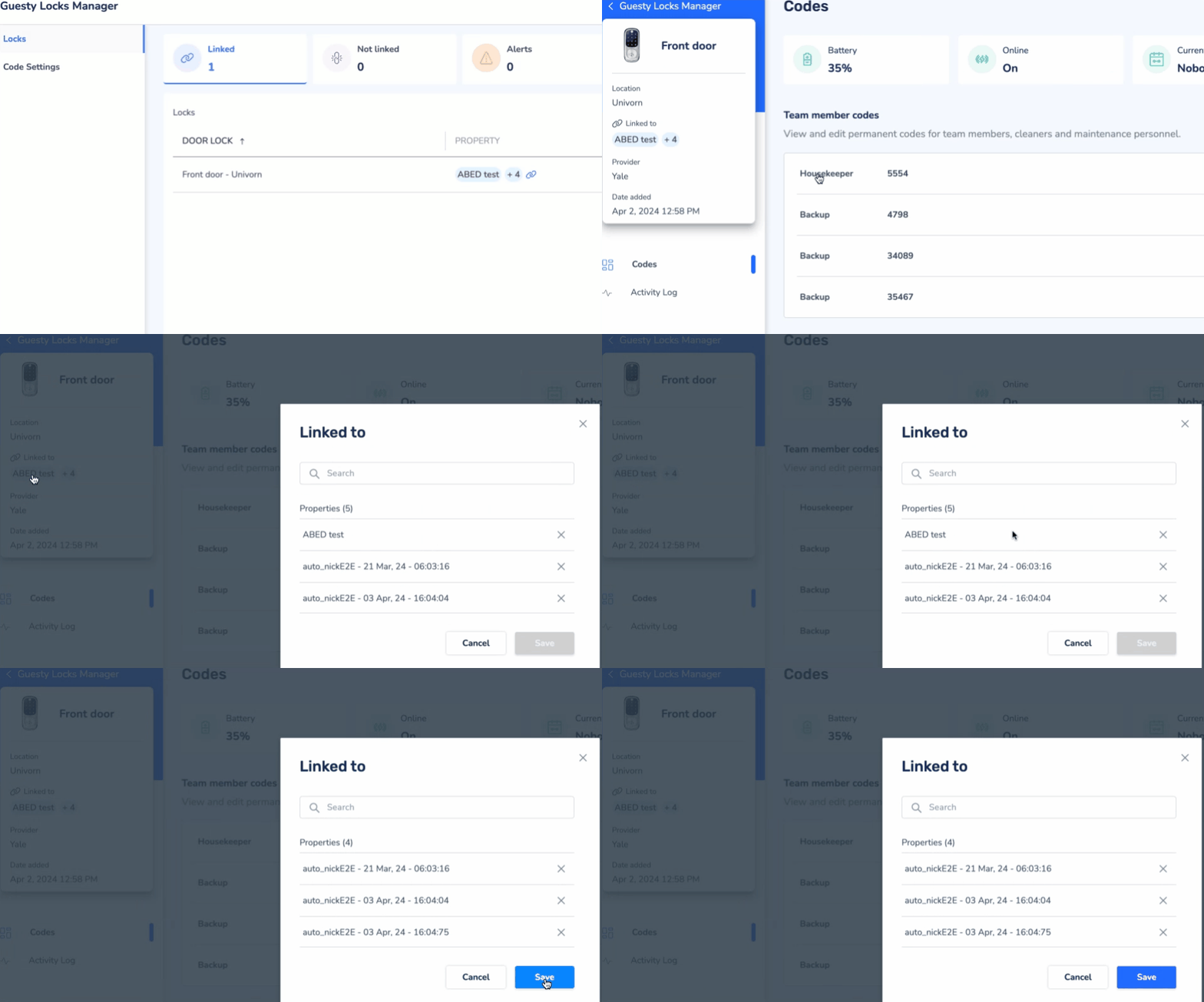
- On the “Locks” page, click the relevant lock.
- At the upper left, under "Linked to", click the name of the listing(s).
- In the pop-up, click the X to the right of the listing name you would like to unlink.
- Click Save.
Once you unlink a lock, Guesty stops generating or sending guest codes for that device.
Remove the provider account
After unlinking all locks, delete the provider connection from your settings.
Important:
Disconnecting a provider account is permanent. This action removes all associated locks from Guesty and cannot be undone.
Step by step:
Open the Guesty Locks Manager.
Click Provider Accounts.
Find the provider you want to remove, such as Schlage, August, or TTLock.
Click the three dots next to to the provider name.
Select Disconnect Provider.
Click Confirm in the pop-up to finalize the removal.