This article guides you through migrating your Guesty For Hosts (GFH) Vrbo Upgraded connection to Guesty Pro. We'll explain the key differences between the two integrations, outline the required steps, and provide troubleshooting tips to ensure a smooth and secure migration.
Quick summary: What to expect
To successfully migrate, you must follow these high-level steps:
Disconnect the Upgraded Vrbo connection in GFH.
Request Vrbo to decommission the existing integration (you handle this directly with Vrbo).
-
Onboard to Guesty Pro once Vrbo confirms decommissioning is complete.
A new Vrbo account with a different email address is required for the Guesty Pro onboarding process.
Typical timeline: The process takes about 3–7 days after you begin the onboarding, varying by case and Vrbo response times.
Understanding the differences between GFH and Pro
The Guesty Pro integration is a robust, full API connection that offers more stability and control.
| Feature | Guesty For Hosts (Upgraded Vrbo) | Guesty Pro (Official Vrbo Integration) |
|---|---|---|
| API | API-based but with limited features. | Full API-based, robust integration. |
| Payment Model | Payment collection via Stripe (You collect payments) or Vrbo as Merchant of Record (MOR), depending on connection type. | You act as the MOR (handle payments and taxes). |
| Stability | Can be less stable; may occasionally produce duplicate blocks or double bookings. | Fewer synchronization errors and improved stability. |
Note:
Vrbo is piloting Vrbo Payments (Vrbo as MOR). Guesty plans to integrate this option for Pro users when it becomes available in the future.
Step-by-step migration
Follow these steps in order. Do not skip steps, as skipping them can block the onboarding process.
Step 1: Disconnect Vrbo in GFH
Before migrating to Guesty Pro, disconnect every Vrbo Upgraded listing from your Guesty For Hosts account. This ensures the integration is fully cleared before Vrbo can decommission your connection.
Disconnect your Vrbo Upgraded connection in GFH
Sign in to your Guesty For Hosts account.
In the top navigation bar, click Menu.
Under Channel Manager, select Vrbo.
Locate each listing currently connected to Vrbo.
On the right side of each listing, under Listing Status, click the down arrow.
Select Disconnect.
Repeat this for every Vrbo listing connected to GFH.
Disconnect your full Vrbo Upgraded account
Once all listings are disconnected, contact Guesty For Hosts Support and request a full Vrbo Upgraded account disconnection. This final step is required before moving to Guesty Pro onboarding.
Step 2: Request Vrbo Decommissioning
Once your Vrbo listings and Vrbo Upgraded account are disconnected from GFH, request Vrbo to decommission the old integration. This step is required before you can onboard to Guesty Pro.
Request decommissioning from Vrbo
-
Contact Vrbo Support using any of the following methods:
Phone call (recommended for fastest turnaround)
Contact form via the Vrbo Help Center
From your Vrbo account: Click Help → Contact us to start a support chat.
Tell Vrbo you are migrating to Guesty Pro and need to decommission your integration with Guesty. (Refer to Vrbo's guidance on decommissioned integration.)
-
Provide Vrbo with the following required details:
Your Advertiser ID
Your Vrbo account email
The listing IDs that need to be disconnected from the current integration
Important:
Vrbo Support will notify you once the decommissioning is complete. Any follow-up questions or status checks must be sent directly to Vrbo. Guesty Support and Guesty Onboarding cannot contact Vrbo to request, confirm, or check the status of decommissioning.
Step 3: Start Connecting Vrbo in Guesty Pro
Once Vrbo confirms your decommissioning request is complete, you can begin the Guesty Pro onboarding process. Refer to the Guesty Pro onboarding guide.
Before you begin
Confirm whether you are managing your properties directly in Vrbo, using Vrbo as your PMS, or through another PMS provider connected to Vrbo.
Disable your properties from any previous PMS to prevent calendar sync conflicts during onboarding.
Guesty does not import listings from Vrbo. Create listings in Guesty first before matching them during onboarding.
Step-by-step onboarding
Click Connect existing account.
Complete the Vrbo SSO (single sign-on) process that opens in a new tab.
-
Once the SSO is complete, return to Guesty and click one of the following:
The link in the SSO completion email from Guesty.
Go to the Vrbo Integration page in Guesty, find your Vrbo account, and click Continue connecting account.
Click Already finished? Continue. (If you see "Continue Vrbo SSO" after completing SSO, wait a few minutes for the sync to finalize.)
If you receive an error message, wait a few minutes and click Already finished? Continue again.
-
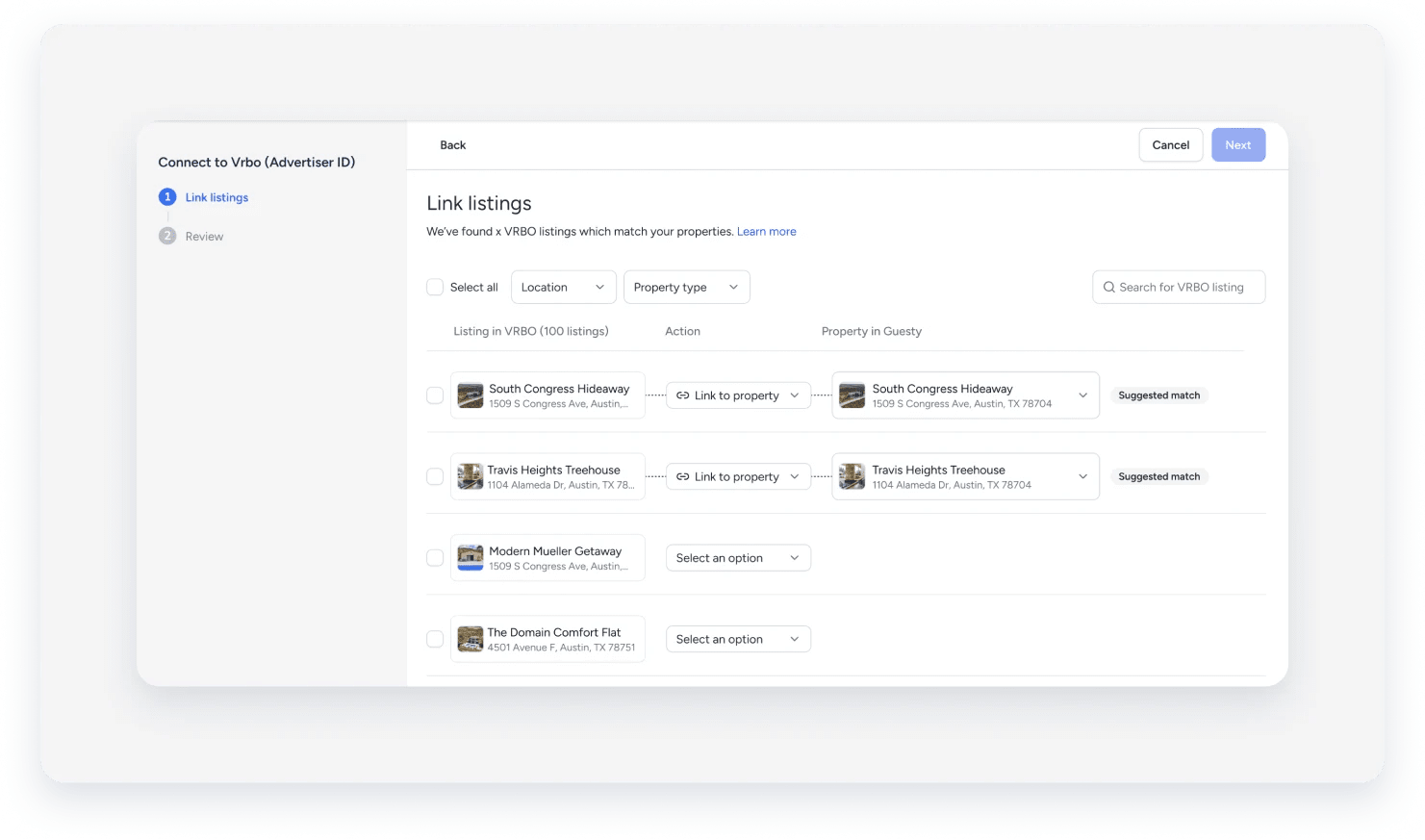
Link your Vrbo listings to Guesty.
You will see each Vrbo listing with its image, name, and address.
Guesty will suggest a matching Guesty listing based on name and coordinates.
Review and approve each suggested match or change the match if needed.
Step 4: Complete setup in Guesty Pro
Once your Vrbo account is successfully connected to Guesty Pro, the system automatically begins the data migration process from GFH to Guesty Pro. Complete the following key actions to ensure a smooth transition:
1. Map or archive properties
Your onboarding team will guide you on which properties should be migrated and which should be archived.
Follow their recommendations and complete the mapping in your Guesty Pro dashboard so each listing aligns correctly with Vrbo.
2. Map all active bookings
You must map all currently active reservations to their corresponding property in Guesty Pro. This step ensures:
Reservations sync properly with the Vrbo API
Messaging, calendar updates, and modifications flow without disruption
Any API-dependent reservation updates or changes remain visible and actionable
Note:
Vrbo’s API requires bookings to be mapped for certain reservation workflows to function correctly.
3. Allow the migration to complete
Once the setup steps above are finished, Guesty will process the full data migration. This includes:
Importing reservation history (when available)
Syncing future bookings
Activating listing connections and content mapping
Preparing your account for Pro-based automations and integrations
Estimated time: Most migrations finish within 3–7 business days, but timing can vary depending on Vrbo responsiveness, the number of listings and bookings, and any required Vrbo validations or corrections during the process. Your onboarding specialist will update you as key milestones are completed.
Common issues and guidance
Check the GFH Help Center article How do I know if I'm on the Vrbo standard or upgraded connection?
Try refreshing the page, logging out/in, or checking for pending GFH tasks linked to Vrbo.
If the issue persists, contact the GFH Support team.
Guesty cannot proceed until Vrbo confirms.
Contact Vrbo directly (phone recommended) to follow up.
Mapping active bookings is mandatory. Ask the IPM to map all bookings; onboarding will not complete without this step.
Reviews are retained only if listings are mapped.
Guesty will re-query messages and resend compliance information as needed.
Reviews are retained only if listings are mapped.
Guesty will re-query messages and resend compliance information as needed.
Verify your payment setup in Pro. Guesty Pro expects the Property Manager to act as the Merchant of Record. If Vrbo Payments is used later, your Account Manager will advise the process.
